
How to set up KIRO for the AWS Enterprise Tenancy -Part 1
- Rom Irinco
- Jun 17
- 4 min read
Updated: 3 days ago
Introduction
If you've been following the rapid evolution of AI-powered development tools, you've likely heard about Kiro — AWS's new agentic IDE that takes a fundamentally different approach to AI-assisted development. Unlike tools like Cursor or GitHub Copilot that focus on chat-to-code workflows, Kiro introduces Spec-Driven Development: a structured approach where requirements, architecture design, and implementation tasks are first-class artefacts that live alongside your code.
For enterprise teams operating AWS environments governed by Control Tower and IAM Identity Center (IDC), setting up Kiro correctly requires some deliberate decisions upfront. Get the account placement wrong, or misunderstand how IDC integrates, and you'll either end up billing Kiro subscriptions to your management account (a governance anti-pattern) or hit regional constraints that block your onboarding entirely.
This guide walks through the end-to-end setup — from account placement decisions to subscribing your team, to connecting your GitLab or GitHub repositories so Kiro artefacts are version-controlled and shared across your engineering team.
Architecture Overview
Before diving into steps, it's worth understanding the two-account separation that makes this work cleanly in an enterprise context.
AWS Organization
│
├── Management Account
│   └── IAM Identity Center (Organisation instance)   ← stays here (Control Tower deploys it)
│       └── Federated IdP (Entra ID / Google Workspace / Okta)
│
├── Shared Services Account            ← Kiro profile lives HERE
│   └── Kiro Console (us-east-1)
│       ├── Kiro Profile → references IDC org instance
│       ├── Subscription billing
│       └── Service-Linked Roles (auto-created)
│
└── Developer Workstations
    └── Kiro IDE (installed locally)
        └── Signs in via IDC Start URL
The key insight: IAM Identity Center is deployed in the management account by Control Tower and stays there. Kiro references it cross-account. The Kiro profile — where billing lands and subscriptions are managed — lives in a member account, typically Shared Services.
Prerequisites
Before starting, confirm the following:
Prerequisite | Notes |
Control Tower deployed | Organisation-level IDC instance already exists |
IDC federation configured | Entra ID, Google Workspace, or Okta synced to IDC |
Shared Services account exists | Or any member account to host the Kiro profile |
AWS Console access | Admin-equivalent permissions in the Shared Services account |
IDC region is supported |
Regional Constraint — Read This First The Kiro console is only currently available in us-east-1 (N. Virginia) and eu-central-1 (Frankfurt). Your IDC instance can be in any region, but there is a supported IDC region list for Kiro integration. If your IDC Organisation instance is in ap-southeast-2 (Sydney), verify it appears on the supported list before proceeding. If it does not, see the Edge Case section below.
Part 1: Setting Up the Kiro Profile in Shared Services
Step 1 — Log Into the Shared Services Account
Sign in to the AWS Console using your IDC SSO portal (https://your-id.awsapps.com/start) and select the Shared Services account. Do not use the management account.

Caption: AWS IAM Identity Center SSO portal — selecting the Shared Services account
Step 2 — Switch Console Region to us-east-1
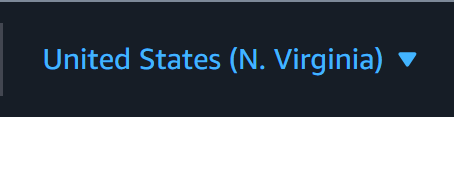
In the top-right region selector, switch to US East (N. Virginia) — us-east-1. The Kiro console will not appear in any other region.
Step 3 — Open the Kiro Console
In the AWS Console search bar, type Kiro and select the Kiro service. You will land on the Kiro Getting Started page.

Step 4 — Create the Kiro Profile
Click Sign up for Kiro. A dialog box appears prompting you to create a Kiro profile. Review the details and click Enable.
The Kiro profile is created in the Shared Services account. This is the billing anchor — all subscription charges will appear on this account's AWS bill.

Step 5 — Connect IAM Identity Center
When prompted to select your identity source, choose IAM Identity Center. Kiro will detect the Organisation instance that Control Tower deployed in your management account.

If your IDC Organisation instance is in a supported region, Kiro will automatically discover it. You do not need to manually enter the IDC ARN.
Step 6 — Subscribe Users and Groups
Navigate to Users & Groups in the Kiro console. Select the Users or Groups tab and click Add user or Add group.
Your IDC users and groups (synced from your IdP) will appear in the picker. Select the group or individual users you want to subscribe, then choose their plan tier:
Plan | Best for |
Pro | Individual developers — standard AI assistance and spec generation |
Pro+ | Power users — higher usage limits, priority model access |
Power | Architects and senior engineers — maximum context, advanced agentic workflows |

Click Subscribe. Users will receive an activation email within 24 hours.
Step 7 — Verify Service-Linked Roles
Two service-linked roles are automatically created in the Shared Services account:
AWSServiceRoleForUserSubscriptions — grants Kiro access to IAM Identity Center to manage subscription state
AWSServiceRoleForAmazonQDeveloper — grants Kiro access to underlying AI model infrastructure
Navigate to IAM → Roles and confirm both roles exist. No manual configuration is required.


Step 8 — KMS Key Policy Update (If Applicable)
If your IAM Identity Center instance uses a Customer Managed Key (CMK) for encryption, you must update the KMS key policy to allow Kiro to decrypt IDC data.
Add the following statement to the KMS key policy:
{
  "Sid": "AllowKiroIDCAccess",
  "Effect": "Allow",
  "Principal": {
    "Service": "q.amazonaws.com"
  },
  "Action": [
    "kms:Decrypt",
    "kms:DescribeKey"
  ],
  "Resource": "*"
}
Part 2: Developer Onboarding — Install and Sign In
Step 1 — Install Kiro IDE
Download from kiro.dev/downloads. Available for:
Windows (x64)
macOS (Intel and Apple Silicon)
Linux (glibc 2.39+, e.g. Ubuntu 24.04 LTS)
Step 2 — Sign In via IAM Identity Center
On first launch, Kiro presents authentication options. Enterprise users provisioned through IAM Identity Center should select Sign in with AWS IAM Identity Center — not GitHub, Google, or Builder ID.
Enter the following when prompted:
Start URL: https://your-id.awsapps.com/start (your organisation's IDC portal URL)
Region: The AWS region hosting your IDC instance
A browser window will open for SSO authentication. Complete the sign-in, return to Kiro, and your subscription will activate.

In Part 2, will set up the connection to the MCP server and other important settings.
© 2026 RGI Consulting. Published on rgiconsulting.co.nz

Comments